Database server is an independent service having mutiple instances of database created within it. Following are ways to connect to database server.
- Using SQL Developer Tool
- Using SQLPlus Command Line Tool
- Using SQL Developer Tool
Steps
- Download SQL Developer tool from Following link and proceed to install it.
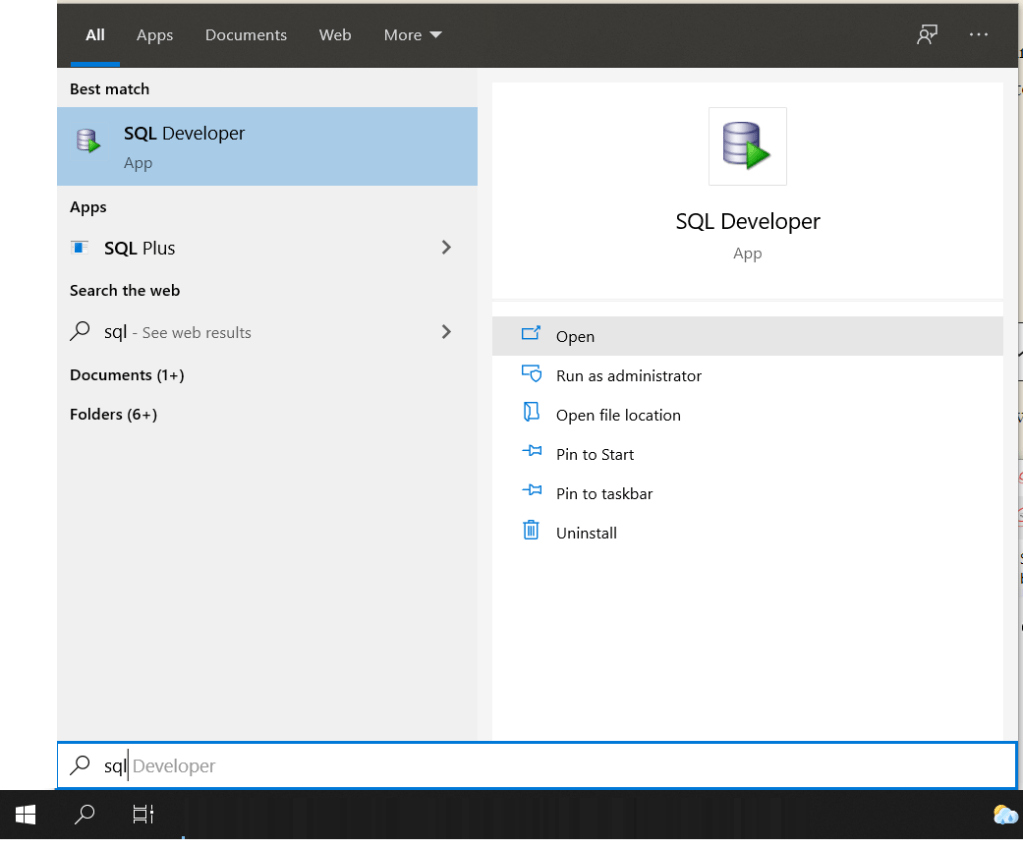
- Launch SQL Developer Application from start menu
- It will open as in below screenshot, click on + sign on left panel to create new connection.

- It will open the dialog “New/Select Database Connection”, enter details as in screenshot and click on “Connect”. Here “orcl” is name of database instance already created in database server. we are connecting with “system” user. Local Net Service name is “orcl” same as database instance name, which is entered in “Service Name” field.

- If all details entered are correct, it will connect and show database connected as in below screenshot. If you expand on + “orcl” database name, it will show in left panel entire database schema.

2. Using SQL Plus Command line tool.
- Open the “command prompt” through start menu.
- You need to know name of Database instance net service name, database username and credentials.
Command Syntax : >sqlplus username/password@servicename
Here we are connected to database instance named “orcl” using credentials(username : system, password : system)

To show, which database current session is connected to, use sql query “show con_name”. It is showing that we are connected to “orcl” database instance.
 SoftFeeds